Runs the family
- Creates the family and invites members
- Chooses helpers and sets their permissions
- Sets goals and emergency stop limits
- Sees family history
CleanBreak is a private bathroom timer for you and your family. Start a timer in one tap, time the people who said yes, and build a healthier habit — without cameras, microphones or tracking.
How it works
CleanBreak works on its own from the first minute. Family is optional, and everyone decides what they share.
Download from the App Store or Google Play. Sign in with Apple, Google or email.
Pick a reminder time that feels right — like 9 or 10 minutes — and start your first timer.
Add a partner, parent or roommate. The admin sets what each helper can do — and you accept every timer they start.
Inside the app
Real screens from CleanBreak on iPhone. The same features are on Android.
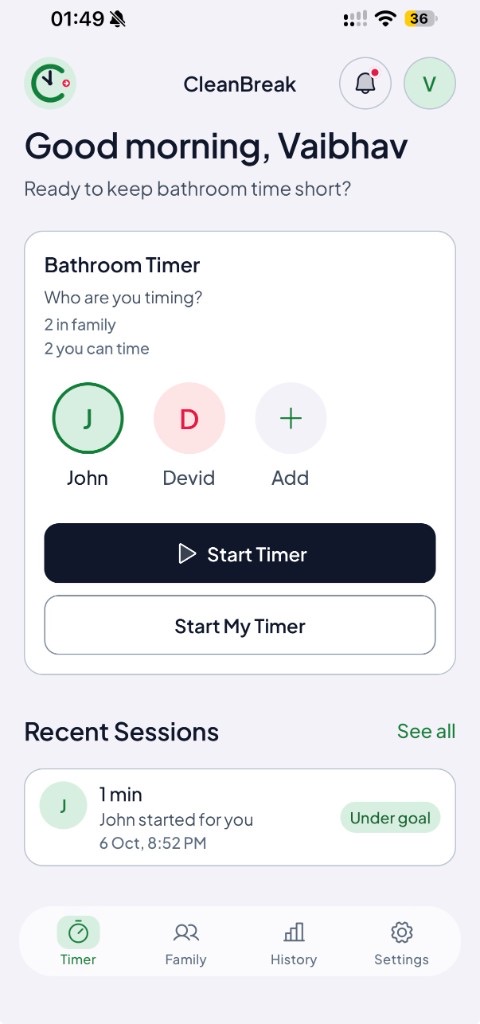
Your home screen shows everyone you can time. Tap a person and press Start Timer, or use Start My Timer for yourself.
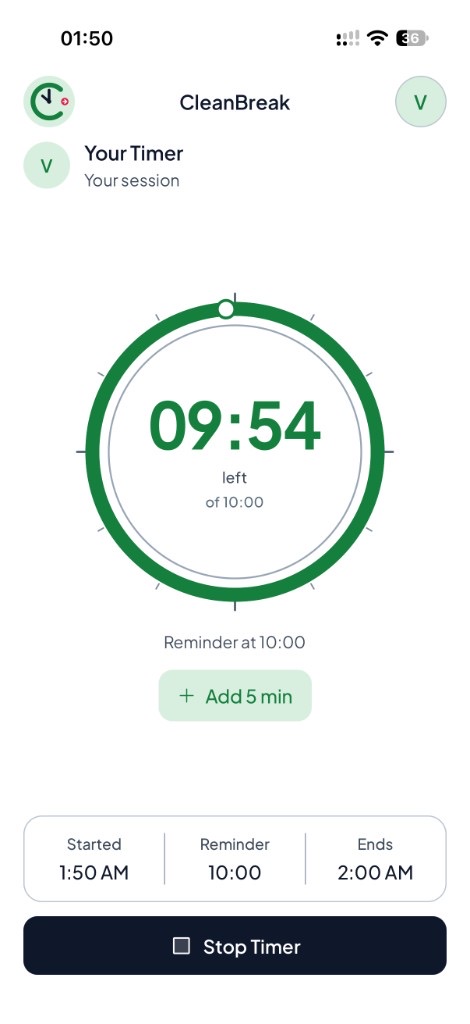
A big countdown ring, a reminder time and an end time. Need longer? Tap Add 5 min. Done early? Tap Stop Timer.
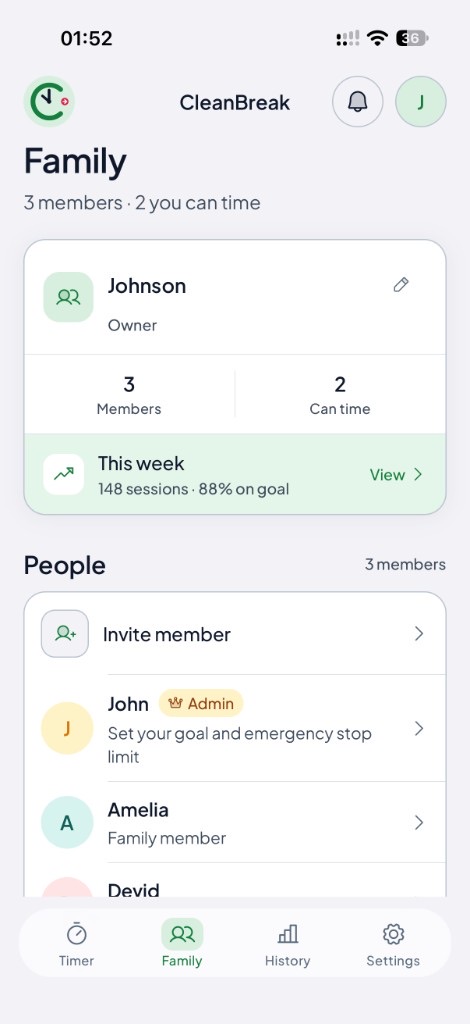
See who is in your family, who you can time, and how the week is going. Admins set goals and emergency stop limits; members choose what they share.
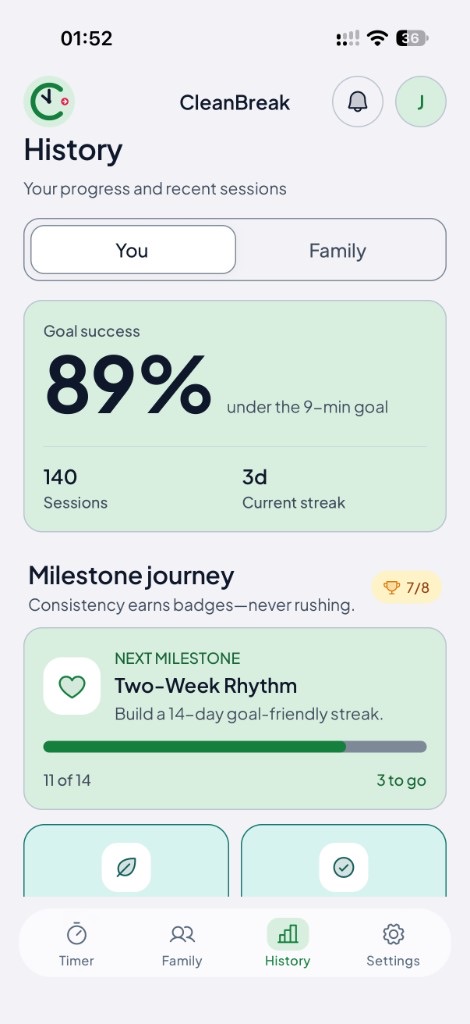
Track your goal success, sessions and streaks — for you or the whole family. Milestones reward consistency, never rushing.
Family setup, step by step
The family owner (admin) builds the group and decides who can help whom. Every timer someone starts for you still needs your OK.
Admin
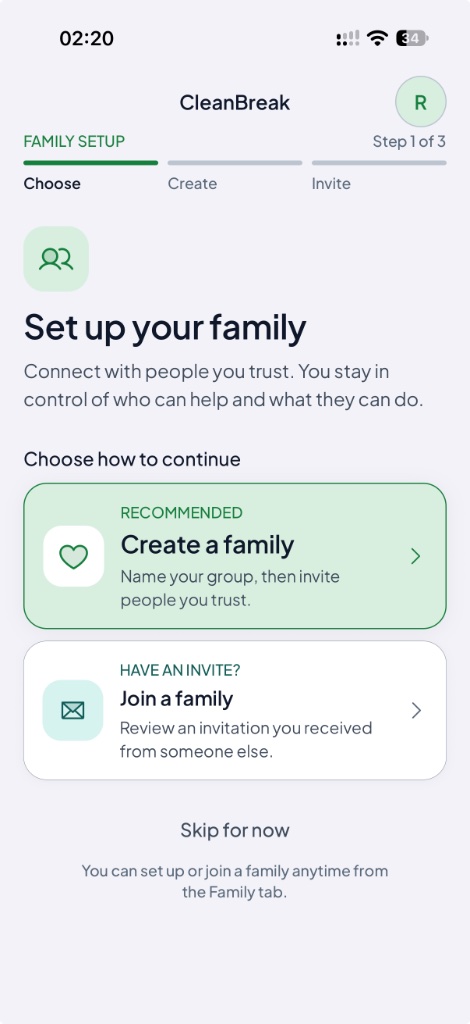
Open the Family tab and choose Create a family. Give it a name — this makes you the owner and admin. Got an invite instead? Pick Join a family.
Admin
Tap Invite member and enter their email. They install CleanBreak, sign in with that same email, and accept from Family → Invitations.
Admin · Permissions
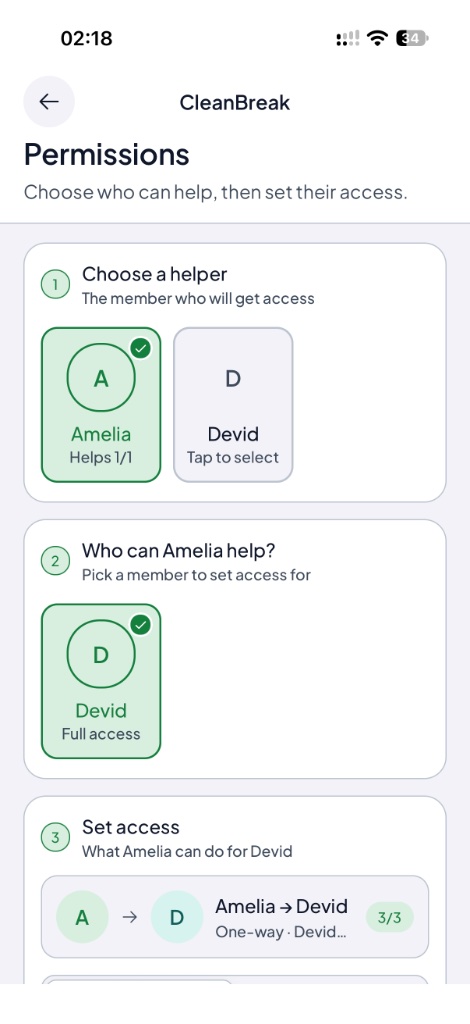
In Permissions, pick the member who gets access (the helper), then pick who they can help. Access is one-way: Amelia helping Devid does not let Devid time Amelia.
Admin · Permissions
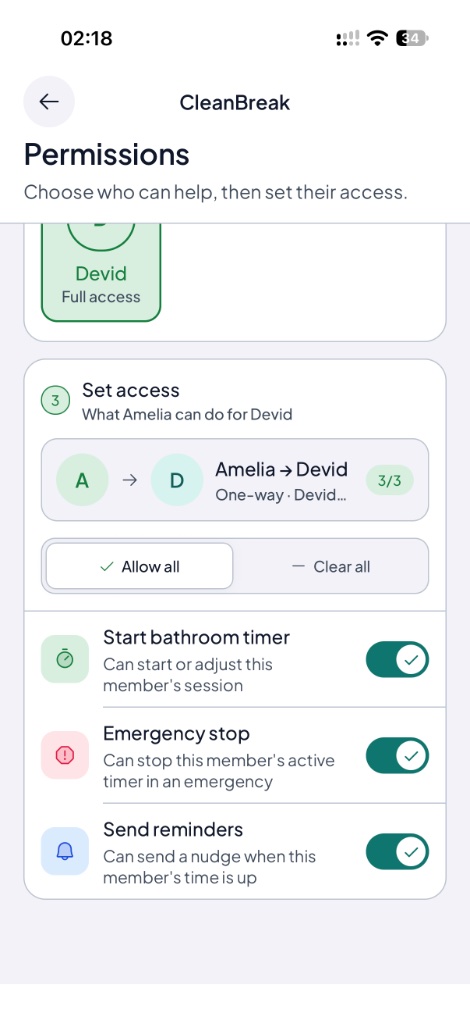
Each helper-to-member pair has three switches. Use Allow all or Clear all, or set them one by one.
Every member
When a helper starts a timer for you, nothing runs until you say so. You get a Timer request and choose Accept or Decline. Ignore it and it simply expires.
Timer request
Amelia has started a timer for you. Do you want to accept it?
9-minute timerExpires if you don’t respond
Everyone
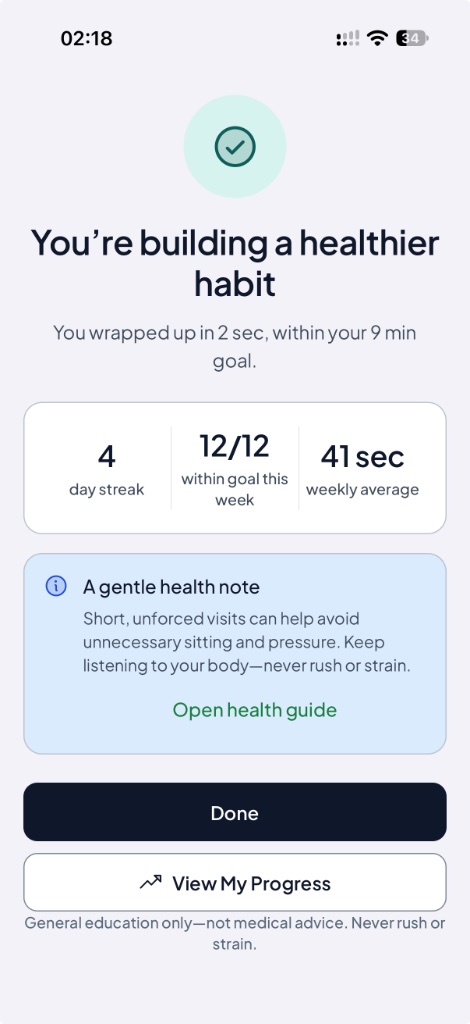
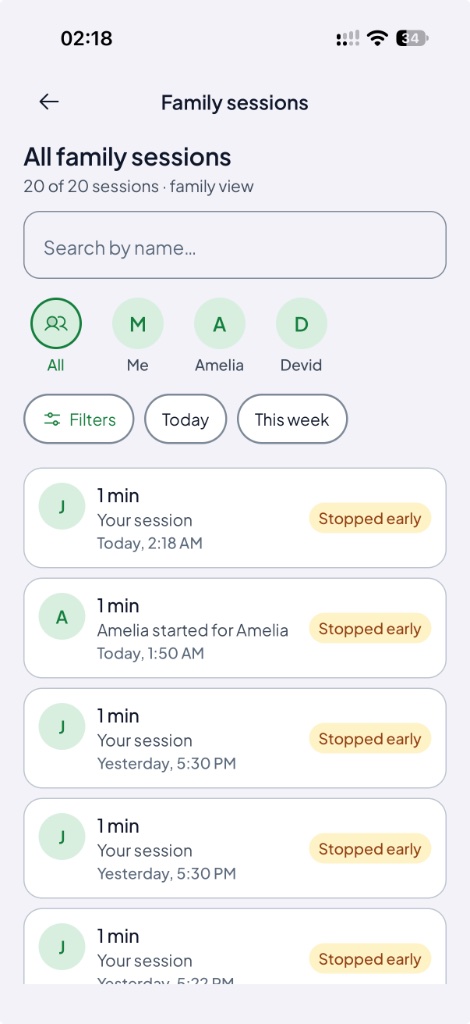
Wrap up and see your streak, sessions within goal and weekly average — with a gentle health note, never pressure. Admins can browse all family sessions and filter by person or day.
Everything included
Small, careful features that help you change a habit — and nothing that watches you.
Start for yourself or someone in your family. Reminders and alarms tell you when it’s time to wrap up.
Time family members who gave permission. Everyone sees timer status, nothing else.
Goal success, sessions and streaks for you and your family, plus milestones to celebrate.
Choose sounds and reminder times that feel supportive, not stressful.
Roles and permissions per person. Leave a family or remove a member anytime.
End any timer instantly. You are always in control of your own break.
Built for privacy
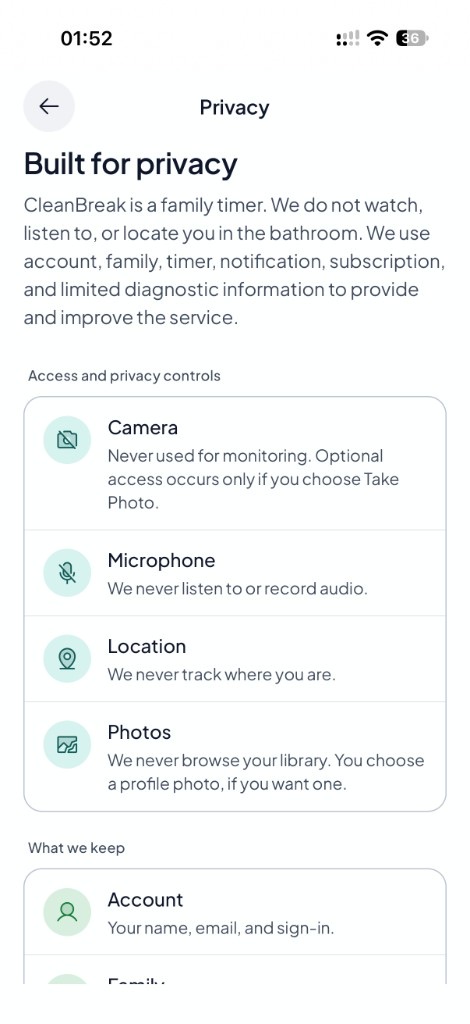
CleanBreak is a family timer — not a monitoring tool. The app’s Privacy screen explains every permission in plain words, so you always know what is used and why.
Time reclaimed
Move the slider to estimate extra bathroom scrolling per year. A time estimate, not medical advice.
That’s about 3.8 full days back for you.
Pricing
Subscriptions are billed through the App Store or Google Play, in your local currency. Cancel anytime in your store settings.
FAQ
CleanBreak is available for iPhone on the App Store and for Android on Google Play. Your account and family work across both.
No. CleanBreak never uses location, camera or microphone. Family members only see timer status and can only do what you allow.
Yes — the solo timer, alarms and reminders are free. Sharing with a partner or family is a premium subscription.
Yes. Families, invitations and timers sync across iOS and Android.
No. A helper can only send a timer request if the family admin allowed it, and the timer runs only after you tap Accept. You can decline, and unanswered requests expire.
The family owner (admin). In Family → Permissions they choose a helper, who that helper can help, and switch on Start timer, Emergency stop and Send reminders individually.
Install the app, sign up with the same email the invite was sent to, then open Family → Invitations. More help.
On iPhone: Settings → your name → Subscriptions. On Android: Google Play → Payments & subscriptions. Deleting your account does not cancel a subscription.
From Settings in the app, or follow the steps on our account deletion page.

Download CleanBreak and start your first timer in seconds. Questions or feedback? We read every email.